

Camera Compatibility Checker for Cloud VMS
Check whether your existing IP cameras are compatible with iFovea cloud VMS before migrating. ONVIF-compatible cameras connect without hardware replacement.
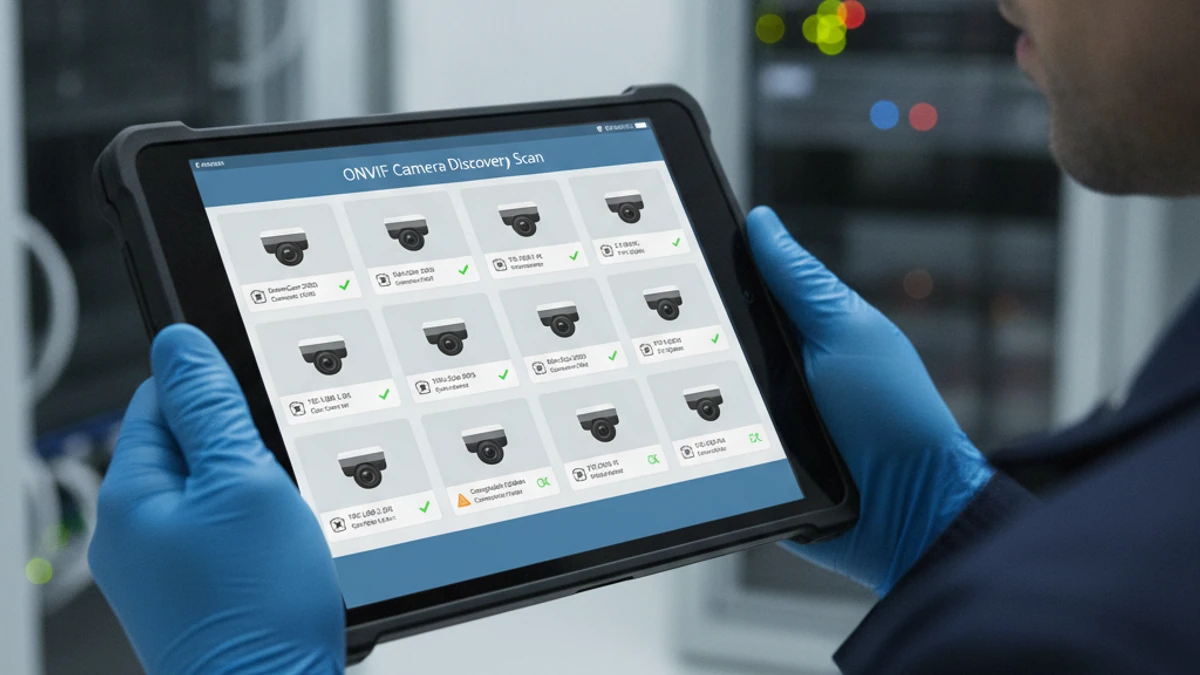
How do I check if my camera supports ONVIF?
Log in to your camera’s web interface and look for Network → Integration Protocol or a similar section. If ONVIF appears, your camera supports it. You can also verify on the official ONVIF Conformant Products database using your camera model number.
| Brand | Series / Models | ONVIF Profile | Status | Notes |
|---|---|---|---|---|
| Hikvision | DS-2CD Series, DS-2DE Series (PTZ) | Profile S | Compatible | Enable ONVIF in Network → Integration Protocol |
| Hikvision | DS-2CD3X, DS-2CD4X | Profile S/T | Compatible | Update firmware to 5.5.0+ for best ONVIF compliance |
| Axis | P Series (Fixed Dome) | Profile S/T | Compatible | Strong ONVIF compliance across all modern Axis models |
| Axis | Q Series (PTZ) | Profile S/G | Compatible | PTZ control via ONVIF Profile G |
| Axis | M Series (Value) | Profile S | Compatible | All M series models with ONVIF enabled |
| Uniview (UNV) | IPC Series | Profile S | Compatible | ONVIF enabled by default on most models |
| Uniview (UNV) | IPC Prime Series | Profile S/T | Compatible | LightHunter variants fully compatible |
| Milesight | AI Pro Series | Profile S/T | Compatible | On-device AI not required; cloud AI runs in parallel |
| Milesight | Vandal Dome / Bullet | Profile S | Compatible | Standard ONVIF; all modern Milesight models |
| 2M Technology | 2MV / 2MB Series | Profile S | Compatible | Standard ONVIF compliance |
| Dahua | IPC-HDW Series, IPC-HFW Series | Profile S | Compatible | Enable ONVIF in Network → Platform Access settings |
| Dahua | SD Series (PTZ) | Profile S/G | Compatible | PTZ ONVIF Profile G supported |
| Vivotek | FD/MD/IB Series | Profile S | Compatible | ONVIF enabled by default on most models |
| Bosch | FLEXIDOME, AUTODOME | Profile S/T | Compatible | Strong ONVIF compliance; verify firmware version |
| Hanwha (Samsung) | XNV/QNV/PNV Series | Profile S/T | Compatible | ONVIF Profile S standard across Hanwha IP cameras |
| Hikvision ColorVu | DS-2CD2147G2 | Profile S | Compatible | ColorVu models support ONVIF; enable in network settings |
| Verkada | All Verkada models | None | Not Compatible | Verkada cameras use proprietary protocol — no ONVIF support |
| Cisco Meraki MV | All Meraki MV models | None | Not Compatible | Meraki MV does not support ONVIF — requires camera replacement for cloud VMS migration |
| Rhombus | All Rhombus models | None | Not Compatible | Proprietary Rhombus protocol — no ONVIF support |
| Flock Safety | All Flock LPR cameras | None | Not Compatible | Flock cameras are proprietary and do not support ONVIF |
Data reflects common ONVIF compliance patterns as of 2026. Verify your specific model on ONVIF.org before migrating.
How to Enable ONVIF on Common Camera Brands
Hikvision
Configuration → Network → Integration Protocol → Enable ONVIF. Create an ONVIF user account. Update firmware to 5.5.0+ for best compatibility.
Axis
ONVIF is enabled by default on most Axis cameras. Verify under System → ONVIF or Management → ONVIF. Create an ONVIF user with operator privileges.
Dahua
Network → Platform Access → ONVIF → Enable. Ensure ONVIF is checked and the correct port (typically 80) is set. Some models require a separate ONVIF user.
Uniview / Milesight
ONVIF is typically enabled by default. Check Network → Integration or Network → ONVIF. No separate ONVIF user usually required — use main admin credentials.
Frequently Asked Questions
How do I check if my camera supports ONVIF?
Log in to your camera’s web interface and look for Network → Integration Protocol, Network → Advanced, or a similar section where ONVIF can be enabled. If ONVIF appears as an option, your camera supports it. You can also check the official ONVIF Conformant Products database at onvif.org/conformant-products/ by entering your camera model.
What ONVIF profile does iFovea require?
iFovea works with cameras supporting ONVIF Profile S (standard streaming and PTZ control) or ONVIF Profile T (advanced streaming features). Profile S is the most common and covers the vast majority of compatible cameras from Hikvision, Axis, Uniview, Milesight, and other brands.
My camera brand is not on this list — can I still use it with iFovea?
If your camera supports ONVIF Profile S, it will likely work with iFovea regardless of brand. The list above covers the most common brands tested. Contact iFovea support with your camera model for a specific compatibility check before migrating.
Can I use older cameras that are no longer firmware-supported?
Older cameras may still work if they already have ONVIF enabled and the firmware is stable. However, unsupported cameras pose a security risk (no vendor patches) and should be replaced as part of a long-term security plan. iFovea can connect to them in the short term while you plan camera upgrades.
What happens if my cameras are not ONVIF compatible?
For non-ONVIF cameras (Verkada, Meraki, Rhombus, Flock), camera replacement is required to migrate to iFovea. iFovea’s migration team can help plan a phased camera replacement strategy to minimize upfront cost and disruption.
Not Sure If Your Cameras Are Compatible?
Get a free camera compatibility assessment from the iFovea migration team. We’ll verify your exact models before you commit.