

Technical Reference
What Is ONVIF?
Camera Compatibility Explained
ONVIF is the open standard that lets any IP camera work with any video management system. Here is what it means, how to enable it, and which cameras support it.
Direct Answer
What is ONVIF?
ONVIF (Open Network Video Interface Forum) is an industry standard that defines how IP security cameras communicate with video management software. An ONVIF-compliant camera connects to any ONVIF-compatible VMS — including iFovea — without proprietary drivers or integrations.
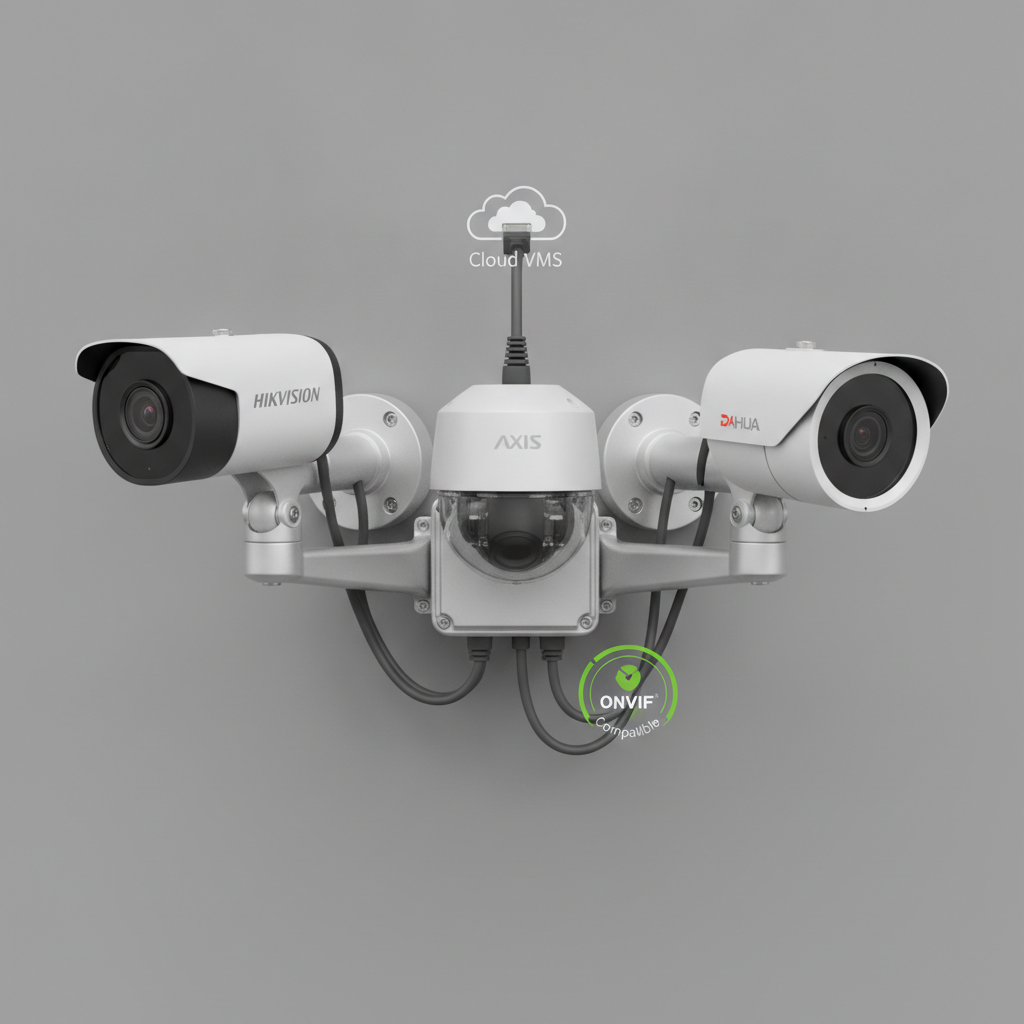
- ✓Any ONVIF camera connects to iFovea — Hikvision, Axis, Dahua, Hanwha, Bosch, Uniview, and more
- ✓ONVIF Profile S = basic streaming; Profile T = AI analytics + H.265 + metadata support
- ✓ONVIF must be manually enabled on Hikvision and Dahua cameras — it is not on by default
ONVIF Profiles: What Each One Means
Profile S
Introduced 2011
Basic IP camera streaming, PTZ control, basic event handling. Minimum for cloud VMS connectivity. Supported by virtually all IP cameras made after 2012.
Profile T
Introduced 2018
H.265 support, metadata streaming for AI analytics, motion region configuration, HTTPS. Recommended for AI analytics (ALPR, people counting, object detection).
Profile G
Introduced 2014
On-device video storage and retrieval — for cameras with SD card recording. Allows VMS to retrieve locally-stored footage during connectivity gaps.
Profile M
Introduced 2021
Metadata and events for analytics — IoT-style event notifications, geolocation metadata. Emerging profile for smart city and AI-intensive deployments.
How to Enable ONVIF on Popular Camera Brands
ONVIF is disabled by default on Hikvision and Dahua cameras. It must be enabled manually in the camera web interface. Axis cameras have ONVIF enabled by default.
Hikvision
- Open the camera web interface (http://[camera-IP])
- Navigate to Configuration → Network → Advanced Settings → Integration Protocol
- Check “Enable ONVIF”
- Set an ONVIF username and password (separate from admin credentials)
- Click Save. Use the ONVIF credentials (not admin) in your VMS
Dahua
- Open the camera web interface (http://[camera-IP])
- Navigate to Setup → System → General → ONVIF
- Enable ONVIF and set ONVIF user credentials
- Confirm ONVIF port (default 80)
- Click Save. Use ONVIF credentials in your VMS
Axis
- Open the camera web interface (http://[camera-IP])
- Navigate to System → Accounts → Add Account
- Create an account with appropriate role for ONVIF access
- ONVIF is enabled by default on Axis cameras
- Use the Axis account credentials directly in your VMS
Hanwha/Samsung
- Open the camera web interface (http://[camera-IP])
- Navigate to Network → ONVIF
- Enable ONVIF and set ONVIF user credentials
- Confirm ONVIF version support (Profile S or T shown)
- Click Apply. Use ONVIF credentials in your VMS
Not sure if your cameras are ONVIF compatible?
The iFovea camera compatibility checker lists ONVIF status for Hikvision, Axis, Dahua, Hanwha, Bosch, Uniview, Milesight, and 2M Technology.
ONVIF-Compatible Camera Brands Supported by iFovea
ONVIF FAQ
What does ONVIF stand for and what does it mean?
ONVIF stands for Open Network Video Interface Forum. It is an industry standards body founded in 2008 by Axis, Bosch, and Sony to define interoperability standards for IP security cameras and video management software. An ONVIF-compliant camera can connect to any ONVIF-compatible VMS without proprietary drivers. Over 25,000 products from 600+ manufacturers are ONVIF conformant as of 2025.
What is the difference between ONVIF Profile S and Profile T?
ONVIF Profile S (2011) covers basic IP camera functionality: video streaming, PTZ control, and basic event handling. ONVIF Profile T (2018) extends Profile S with H.265 support, metadata streaming for AI analytics, HTTPS support, and motion alarm configuration. For AI analytics (ALPR, people counting, object detection), Profile T is preferred. Profile S is sufficient for basic cloud VMS connectivity.
How do I know if my security camera is ONVIF compatible?
Three ways to check: (1) Look for the ONVIF logo on the camera box or product page — conformant products list is at onvif.org. (2) Check the camera web interface under Network → Integration Protocol for an ONVIF section. (3) Use an ONVIF device discovery tool (like ONVIF Device Manager, free) on the same network to see if the camera responds to ONVIF requests. Most IP cameras from Hikvision, Axis, Dahua, Hanwha, and Bosch made after 2012 are ONVIF Profile S conformant.
Why do some ONVIF cameras still not work with all VMS platforms?
ONVIF defines a standard but implementation quality varies between manufacturers. Common issues: (1) some manufacturers implement a subset of the ONVIF spec, (2) ONVIF credentials are separate from admin credentials and must be specifically enabled, (3) firmware versions may have ONVIF bugs that were fixed in later updates, (4) some features (specific analytics streams, audio) are vendor extensions not covered by ONVIF. Most issues are resolved by enabling ONVIF explicitly in the camera settings and using the correct ONVIF port (typically 80 or 8080).
Does ONVIF work with Hikvision, Axis, and Dahua cameras?
Yes. Hikvision, Axis, and Dahua are founding or early ONVIF members and produce ONVIF Profile S and Profile T conformant cameras across their product lines. Important: for Hikvision and Dahua cameras, ONVIF must be enabled manually in the camera web interface under Network → Advanced → Integration Protocol. The ONVIF username and password are separate from the admin login and must be configured before connecting to cloud VMS.
Ready to Connect Your ONVIF Cameras to Cloud VMS?
iFovea works with any ONVIF Profile S or Profile T camera. Most deployments are live within 48 hours of enabling ONVIF on existing cameras.